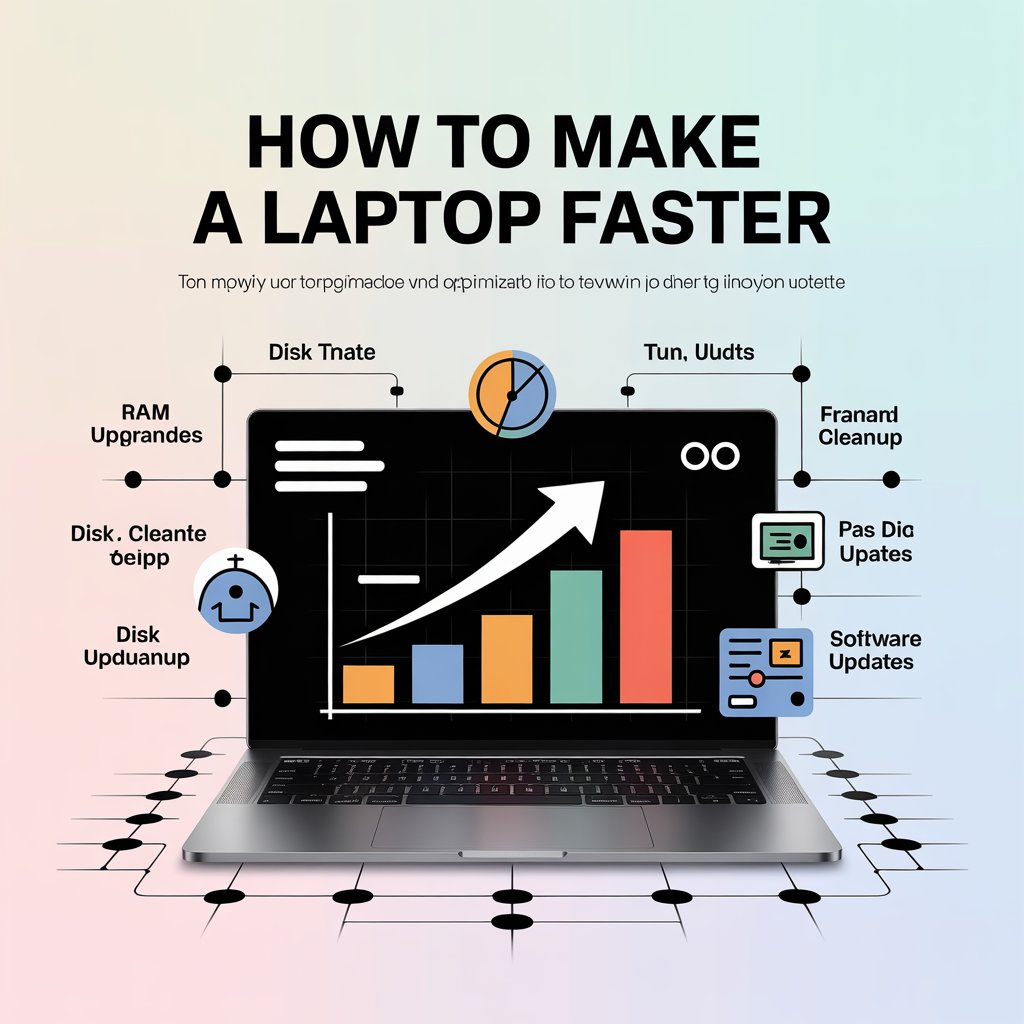
How to Make a Laptop Faster
To make a laptop faster, remove things you no longer use, stop unnecessary apps from running in the background, free up storage, and restart the system so it can breathe again.
When a laptop slows down, people often assume it is dying. Usually, it is not. It is just overloaded. There are simply too many apps on the device. The system is overloaded with an excessive number of background tasks. Too little free space. The workload builds up slowly, so the slowdown feels sudden even though it isn’t.
You don’t need advanced knowledge to fix this. You just need to deal with the clutter.
Start With What You Don’t Use Anymore
Please review your list of installed programs with an honest perspective. You will see things you forgot about. Trial software. Old tools. Apps that made sense once but don’t anymore.
These programs don’t just sit there quietly. Many of them run background services. They consume memory. They compete with what you actually want to do. Removing them lightens the load immediately.
This procedure is one of the simplest fixes, and people skip it far too often.
Control What Starts With the laptop
If your laptop feels slow or unresponsive right after turning on, it is usually due to too many apps trying to start simultaneously. Too many apps are trying to start at the same time. Messaging apps. Cloud tools. Update services. Some of them don’t need to open right away.
Disable startup apps you don’t need instantly. This does not break anything. It only delays them until you actually open them yourself.
Most people are surprised how much smoother things feel after doing just this.
Give Storage Some Space
A nearly full drive slows everything down. There is no way around that.
Old downloads. Duplicate files. Large videos you don’t need anymore. These files sit there quietly, choking your device’s performance. Clear them out. Move large files to an external drive if needed.
Many laptops used locally come with limited storage. When space runs low, performance suffers fast. Keeping free space is not optional. It is necessary.
Updates Help, but Timing Matters
System updates are not a threat. Ignoring them for months causes more problems than installing them.
That said, update at the right time. Not when the battery is low. Avoid updating during periods of unstable electricity. Do it when you have time and power. Once done properly, updates usually improve stability.
Skip unnecessary extras. Keep the core system healthy.
Don’t Let Everything Run at Once
Laptops slow down when too many things compete for attention. There are too many tabs open in your browser. There are too many apps operating silently in the background.
Close what you are not using. Keep tabs under control. Avoid running heavy programs when they are not needed.
This action alone can make an old laptop feel usable again.
Restarting Is Underrated
Many people avoid restarting. They just keep closing the lid. Days turn into weeks. Background processes pile up.
Restarting clears temporary junk. It resets things you can’t see. Doing this every few days helps more than people think.
It costs nothing. It works.
When Software Fixes Are Not Enough
At some point, hardware limits show up. Older laptops struggle with modern workloads. Low RAM. Older laptops often suffer from slow hard drives. These things matter.
Upgrading RAM or switching to an SSD can change the experience completely. This is common with older machines used here. A small upgrade often costs far less than buying a new laptop and delivers real improvement.
Heat Slows Laptops Down
Heat reduces performance. Dust blocks airflow. Soft surfaces trap heat. Use a rigid surface. Clean vents occasionally. Avoid beds and cushions. Overheating doesn’t always shut laptops down. It just makes them slower. Keeping things cool keeps them fast.
A slow laptop is usually not broken. It is just tiring. Clear the clutter. Reduce background load. Free storage. Restart occasionally. These steps solve most speed problems. Consider upgrades only if these changes are insufficient. Often, they are.
How to make a laptop faster without spending money?
Uninstall unused programs, free storage space, and disable unnecessary startup apps. Restart the laptop regularly to clear background processes. These steps reduce load and improve speed without costing anything.
Why does a laptop slow down over time?
Apps accumulate, storage fills up, and background tasks increase slowly. Updates and temporary files add more load. Over time, the system struggles to manage everything at once.
Does restarting actually help performance?
Yes. Restarting clears temporary processes and resets background tasks. It often fixes sluggish behavior that builds up over time.
Will adding RAM make my laptop run faster?
If your laptop struggles with multitasking, extra RAM helps. It allows more apps to run smoothly together. Older laptops often benefit the most.
Is switching to an SSD worth it?
Yes. An SSD improves startup speed, app loading, and overall responsiveness. It is one of the most effective upgrades for older systems.