
How to Check My Laptop Model
Your laptop model appears in system settings, built-in system tools, or printed on the laptop body.
The laptop model tells you the exact version of your device. It is relevant for drivers, repairs, and upgrades. Shops often ask for it before service. Warranty claims also depend on it. In Pakistan, resellers and technicians request it frequently. Guessing the model causes mistakes. Knowing it early saves time.
What a Laptop Model Actually Means
A laptop model identifies the specific version made by the manufacturer. It is not the same as the brand name. One brand can release many models. Each model has different parts and features. Drivers depend on this number. Accessories also vary by model. Repair parts must match correctly. Clear identification avoids compatibility issues.
Finding the Laptop Model in Windows Settings
Windows shows the laptop model inside system information. Open Settings and go to the System section. The About page displays device details. The model name appears with other system data. This name comes from the manufacturer. It works on most Windows laptops. Many people prefer this method because it loads quickly.
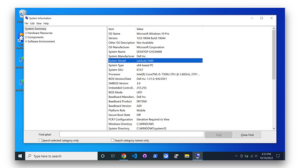
Use the System Information tool to view the laptop model.
The System Information tool shows the full official laptop model. To open System Information, type “System Information” into the search bar. The main screen loads detailed hardware data. The model appears near the top of the page. This view shows the complete model string. Technicians trust this source. It is helpful when the Settings app displays a short name for the model.
Use the Command Prompt.
Command Prompt can display the laptop model in one line.
Open Command Prompt from the Start menu. Type “wmic csproduct get name” and then press Enter. The system shows the model instantly. This function works even on slow systems. Many people use it during troubleshooting. The data comes directly from the system.
Finding the Laptop Model on the Laptop Body
Many laptops have the model printed on the body. Turn the laptop over and check the bottom panel. A sticker or engraving usually shows the model. Some laptops place it near the hinge. The label helps when the laptop does not turn on. Business laptops often include clear labels. Always read the full text carefully.
To check the laptop model, refer to the box or invoice.
The laptop box and invoice usually list the model number. Retail packaging prints the full model name. Invoices also include it for records. This feature helps when the laptop is new. Many people keep the box for this reason. Warranty claims often rely on it. Matching the box with the device avoids confusion.
Laptop Model vs. Serial Number Explained
The laptop model and serial number serve different purposes. The model shows the device type. The serial number identifies one unit. Many people mix them up. Service centers often ask for both. Sharing the wrong one causes delays. Knowing the difference helps during support calls.
Why Knowing Your Laptop Model Matters
The laptop model affects support and future decisions. Drivers depend on the exact model. Batteries and chargers vary by design. Repair parts must fit correctly. Resale listings need accurate details. Guessing leads to wrong purchases. Correct information prevents wasted money.
Common Problems When Checking Laptop Model
Some laptops do not show the model clearly. Windows may display a generic name. Stickers can fade with time. Refurbished laptops may have mismatched boxes. Command tools usually give clearer results. Checking more than one place helps. This avoids confusion later.
Laptop Model for Used or Refurbished Laptops
Used laptops need extra care when checking the model. Previous owners may change parts. Boxes may not belong to the device. Labels may be missing or damaged. System tools often show accurate data. Checking multiple sources builds confidence. This matters before resale or repair.
Can I check my laptop model without turning it on?
Yes, often you can. Most laptops have the model written on the bottom side, usually on a small label. If that label is still readable, it gives the answer straight away. The original box or invoice can also help if you kept them. Such information is useful when the laptop is not powering on.
Does upgrading RAM or SSD change the laptop model?
No, upgrades do not change the laptop model. The model stays the same from the day the laptop was made. Only parts like RAM or storage get replaced over time. Even after upgrades, it is still the same device. This behavior is normal and happens with all laptops.
Is the laptop model the same as the brand name?
Not really, and this is where many people get confused. The brand is the company name, but the model is the specific version they released. One brand can sell dozens of different models at the same time. Saying only one brand is usually not enough. Service centers and sellers often need the exact model.
Why does Windows show a different laptop model name?
This happens more often than people expect. Windows sometimes shows a short name or an internal code instead of the full model. Manufacturers do this for system labeling. The complete model usually appears in System Information or Command Prompt. Checking another place often clears things up.
Can I use the laptop model to download drivers?
Yes, and it actually matters more than people think. Drivers are linked to the laptop model, not just the brand. Using drivers from a similar-looking model can still cause issues. It is always better to double-check first. This helps avoid problems later.