How to Clear Cache on MacBook: Complete, Expert-Level Guide
If your MacBook feels slower than usual, apps take longer to open, or storage space keeps disappearing, cache files are often the hidden cause. Cache is not bad by design. In fact, it exists to make your Mac faster. But when cache grows unchecked, it does the opposite.
Clearing cache on MacBook improves speed, frees storage, and fixes app issues. Start by clearing browser cache in Safari, Chrome, or Firefox, then remove system and application cache using Finder. Restart your MacBook afterward to apply changes safely.
This guide explains how to clear cache on MacBook safely and correctly, without risking important files or system stability. You’ll learn what cache really is, when it helps, when it hurts, and how to clean it in a way that actually improves performance, not just frees space temporarily.
What Is Cache on a MacBook?
Cache is temporary data stored by macOS, apps, and web browsers. Its purpose is simple: speed. When your Mac stores frequently used files in cache, it loads apps and websites faster the next time you use them.
Over time, however, cache files pile up. Some become outdated. Others belong to apps you no longer use. When this happens, cache stops being helpful and starts consuming storage, memory, and system resources.
Clearing cache removes these temporary files not your personal data, documents, or apps.
Types of Cache on MacBook
Understanding cache types helps you clean the right files without mistakes.
Browser Cache
Stored by Safari, Chrome, and Firefox to load websites faster. This cache grows quickly and is often the safest to clear.
System Cache
Created by macOS to support background services and system operations. Most system cache files regenerate automatically after deletion.
Application Cache
Stored by apps like browsers, video editors, messaging apps, and creative software. These files can become very large over time.
Each cache type serves a purpose but none should grow endlessly.
Signs It’s Time to Clear Cache on MacBook
Clearing cache is useful when symptoms appear, not randomly.
Common signs include:
- Your MacBook feels slow despite light usage
- Storage space keeps shrinking without explanation
- Apps freeze, crash, or load slowly
- Websites display outdated content or fail to load
- Fans run loudly during simple tasks
If you notice two or more of these, cache cleanup is worth doing.
How to Clear Cache on MacBook (Step-by-Step)
Follow these steps carefully. They are safe, proven, and effective.
Step 1: Clear Browser Cache on MacBook
Browser cache is the easiest and safest place to start.
How to Clear Cache in Safari
- Open Safari
- Go to Settings > Advanced
- Enable Show Develop menu
- Click Develop > Empty Caches
Safari will clear cached website data instantly.
How to Clear Cache in Google Chrome
- Open Chrome
- Go to Settings > Privacy & Security
- Click Clear browsing data
- Select Cached images and files
- Click Clear data
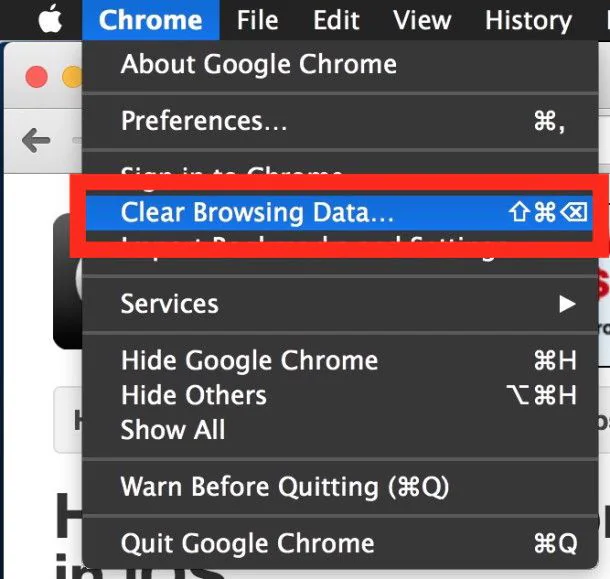
This does not remove bookmarks or saved passwords.
How to Clear Cache in Firefox
- Open Firefox
- Go to Settings > Privacy & Security
- Under Cookies and Site Data, click Clear Data
- Select Cached Web Content
Restart the browser for best results.
Step 2: Clear System Cache on MacBook
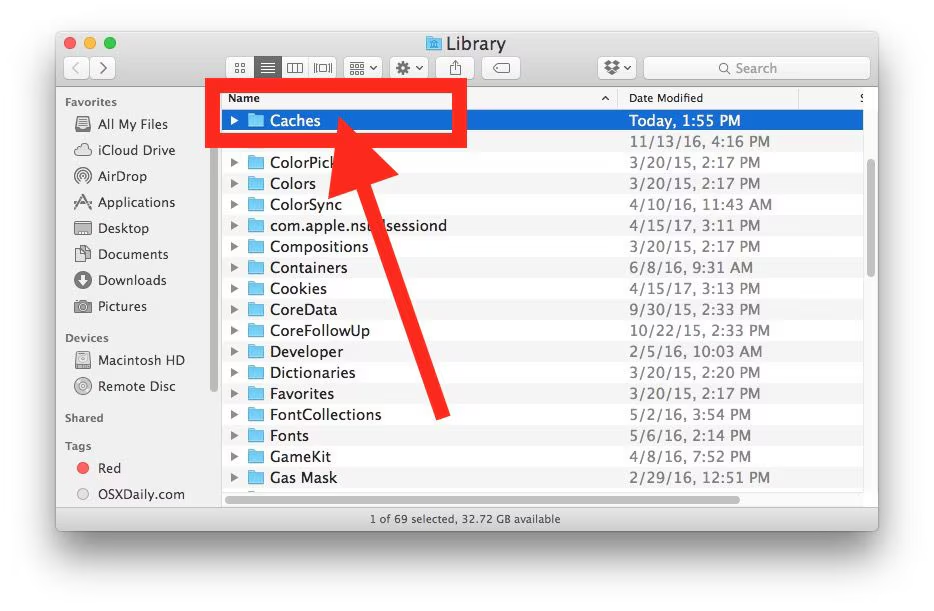
System cache files are stored in protected macOS folders. Clearing them frees space and removes corrupted temporary data.
Steps
- Quit all open apps
- Open Finder
- Click Go > Go to Folder
Enter:
/Library/Caches/
- Delete the contents inside folders, not the folders themselves
Repeat the process for:
~/Library/Caches/
Restart your MacBook afterward.
Step 3: Clear Application Cache on MacBook
Some apps generate massive cache files.
To clear app cache:k Jo
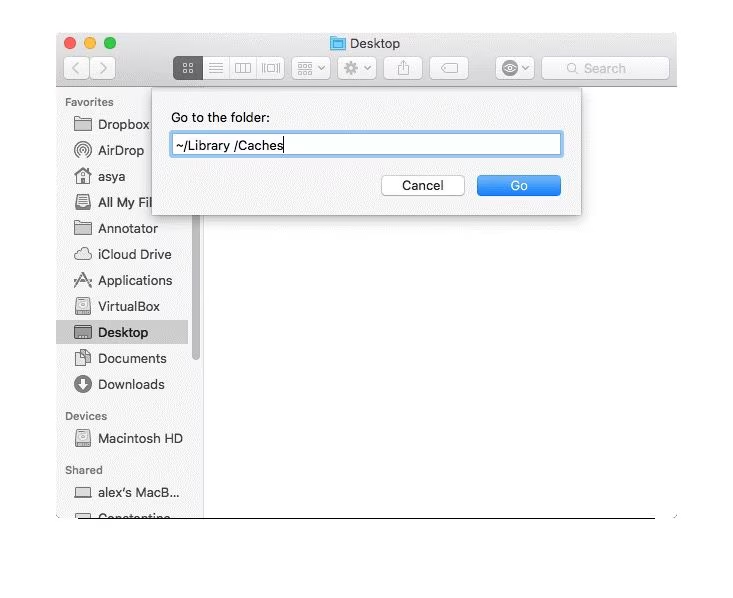
- Open Finder > Go > Go to Folder
Enter:
~/Library/Caches/
- Look for folders named after apps
- Delete cache folders for apps you trust and use regularly
Avoid deleting cache for system-critical apps unless you’re confident.
For additional official guidance on managing cache and system storage, Apple provides instructions in its support documentation: Apple Support – Free up storage on your Mac.
How to Clear Cache on MacBook Safely
Cache cleanup is safe when done correctly.
Follow these rules:
- Never delete folders outside Caches
- Do not remove system folders you don’t recognize
- Restart your MacBook after cleanup
- Avoid aggressive third-party cleaners
macOS rebuilds the necessary cache automatically.
In early 2025, shortly after SafeCare moved its design team from Windows laptops to MacBooks, one designer, Mughees, began noticing something strange. His MacBook wasn’t crashing but it didn’t feel right. Apps took longer to open, Safari refreshed pages inconsistently, and despite deleting files, storage kept shrinking without explanation.
At first, it seemed like normal macOS behavior. But within days, even simple design tasks caused lag. Concerned that something was seriously wrong, Mughees reached out to Haisam, the team’s senior designer, someone who had quietly relied on a MacBook for over 10 years.
Haisam didn’t rush to blame the hardware. Instead, he walked Mughees through a careful check: browser cache first, then system cache, and finally application cache buried deep inside macOS folders. Dozens of outdated temporary files surfaced, some from apps Mughees no longer even used.
After safely clearing the cache and restarting the MacBook, the difference was immediate. Apps launched smoothly, storage space returned, and the system felt responsive again. What looked like a failing MacBook turned out to be nothing more than unchecked cache buildup.
This real-world experience proves one thing: cache isn’t dangerous but ignoring it is. With expert guidance and proper cleanup, MacBook performance issues can be resolved without risky tools or drastic measures.
Does Clearing Cache Improve MacBook Performance?
Yes but with realistic expectations.
Clearing cache helps when:
- Storage is nearly full
- Apps misbehave
- Browsers lag or crash
- Temporary files are corrupted
It will not turn an old MacBook into a new one, but it often restores lost responsiveness and stability.
How Often Should You Clear Cache on MacBook?
There’s no need to clear cache daily.
Recommended frequency:
- Browser cache: once every 2–4 weeks
- System cache: every few months
- App cache: when problems appear
Heavy users benefit more from regular cleanup.
Apple Silicon vs Intel Macs: Does Cache Handling Differ?
MacBooks with M1, M2, or M3 chips manage memory more efficiently, but cache behavior is the same. Cache files still accumulate, especially from browsers and creative apps.
The cleanup steps remain identical across Intel and Apple Silicon Macs.
Common Mistakes When Clearing Cache on Mac
Avoid these errors:
- Deleting random system folders
- Using unsafe “one-click” cleaners
- Clearing cache too often
- Expecting instant dramatic speed boosts
Smart maintenance beats aggressive cleanup.
How to Prevent Cache Buildup on MacBook
Prevention reduces the need for cleanup.
Best practices:
- Keep macOS updated
- Close unused browser tabs
- Remove apps you no longer use
- Restart your MacBook regularly
- Monitor storage usage
Small habits keep cache under control.
Why Cache Management Matters
Unmanaged cache:
- Consumes storage silently
- Causes app instability
- Slows startup times
- Triggers system lag
Managing cache keeps your MacBook efficient, predictable, and reliable.
Final Thoughts
Clearing cache on MacBook is not about deleting files blindly. It’s about understanding what your system stores, why it stores it, and when cleanup helps.
A MacBook that manages cache properly runs smoother, lasts longer, and feels more responsive. Use this guide as a reference whenever performance dips or storage tightens.
If you care about speed, stability, and long-term Mac health, cache management is a habit worth building.
Explore More MacBook Guides: Chips, Models, guide & Prices in 2026
Before buying or upgrading in 2026–2027, explore Mega.pk’s detailed Apple guides:
- Apple M5 vs M4 Chip Comparison
- MacBook Air vs MacBook Pro (Buying Guide)
- MacBook Pro 14-inch vs 16-inch Breakdown
- MacBook Model Identification (Serial Checker Guide)
- Updated MacBook Prices in Pakistan
- Complete MacBook Buying Guide
- What Is a MacBook? (Beginner Overview)
- Apple M3 chip
- Understanding the Apple M5 chip and Apple M4 chip
- How to Reset Macbook (Complete guide)
- How to check Battery Cycle (Guide)
- How to take screenshot on mac(Complete guide)
- How to copy,paste or right click on Macbook
- How to delete apps on macbook
FAQs
What happens when you clear cache on a MacBook?
Clearing cache removes temporary files used by apps and browsers. Your Mac may load slightly slower at first, then perform more smoothly afterward.
Is it safe to delete cache files on Mac?
Yes. Cache files are temporary and regenerate automatically. Deleting them does not remove personal data or installed apps.
Will clearing cache delete my files or photos?
No. Cache cleanup does not affect documents, photos, videos, or applications stored on your MacBook.
Does clearing cache make MacBook faster?
It can improve responsiveness, fix app issues, and free storage, especially when cache files are corrupted or excessive.
Do I need third-party apps to clear cache on Mac?
No. macOS provides built-in tools to clear cache safely. Manual cleanup is often more reliable than automated cleaners.