How to Force Quit on Mac: The Complete Guide
Even the most reliable Mac can freeze at the worst possible moment. A spinning beach ball appears, clicks stop working, and an app refuses to respond. When that happens, knowing how to force quit on Mac is not just helpful, it’s essential.
Force quitting is a built-in macOS safety feature designed to protect your system when an app becomes unresponsive. Used correctly, it helps you recover control quickly without harming your Mac. Used incorrectly or too often, it can cause data loss or signal deeper performance issues.
This in-depth guide explains every safe way to force quit apps on Mac, when to use each method, what to avoid, and how to prevent freezes in the future. Whether you’re using a MacBook Air, MacBook Pro, iMac, or Mac mini, this guide gives you everything you need in one place.
What Does “Force Quit” Mean on macOS?
Force Quit is a command that immediately stops an app that is frozen or not responding. Unlike quitting an app normally, force quitting does not give the application time to save data or complete background tasks.
macOS triggers the need for force quit when:
- An app stops responding to clicks or typing
- The spinning beach ball appears for an extended time
- The Dock shows “Application Not Responding”
- System performance slows due to a stuck process
Force Quit is not a crash. It’s macOS stepping in to stop an app that can’t stop itself.
What is the difference between Force Quit and Quit
Understanding the difference between Quit and Force Quit helps you avoid unnecessary data loss.
When you quit an app normally using Command + Q, macOS allows the app to:
- Save unsaved files
- Close background tasks
- Sync changes properly
Force Quit bypasses all of that. The app is terminated instantly.
This is why force quit should only be used when an app is unresponsive. If the app still responds, always try a normal quit first. That single habit protects your work and keeps your system healthy.
Fastest Way to Force Quit on Mac (Keyboard Shortcut)
The quickest and most reliable method to force quit an app on Mac is the built-in keyboard shortcut.
How to force an app to quit
- Press Command + Option + Escape together.
- Select the app you want to quit from the dialogue box.
- Click Force Quit.

Select the frozen app and click Force Quit. macOS will immediately stop it.
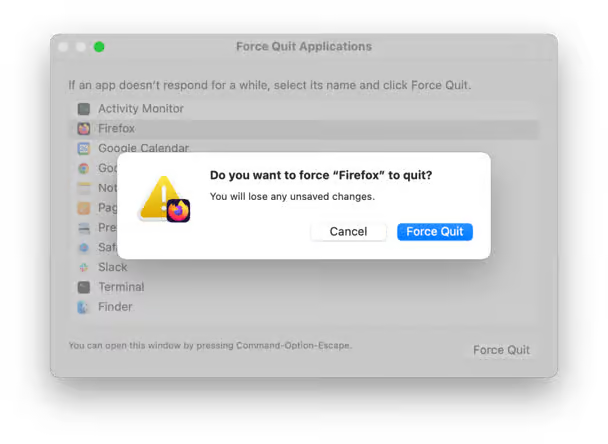
This method works even when your mouse or trackpad is lagging, making it the fastest solution in most situations.
How to Force Quit on Mac Using the Apple Menu
If your keyboard is responsive but you prefer using menus, macOS offers another simple method.
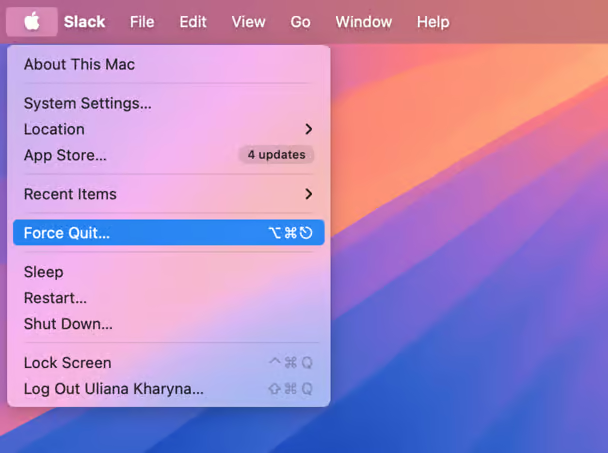
- Click the Apple logo in the top left corner of your screen.
- Select Force Quit.
- Choose the app that’s not responding.
- Click the Force Quit button.
This method is ideal for users who are new to macOS or prefer visual navigation.
How to Force Quit Apps on Mac Using Activity Monitor
When an app freezes repeatedly or slows down your Mac, Activity Monitor provides deeper insight and control.
Activity Monitor shows all running processes, CPU usage, memory consumption, and energy impact. This makes it especially useful when you’re unsure which app is causing the issue.
To force quit using Activity Monitor:
- Open Activity Monitor from Applications > Utilities
- Locate the frozen app (unresponsive apps are marked clearly)
- Select the app and click the X button
- Choose Force Quit

This method is best when:
- Multiple apps are slowing your Mac
- An app isn’t visible in the Dock
- You want to diagnose performance issues, not just close an app
How to Force Quit Finder on Mac (Safely)
Finder behaves differently from other apps because it controls the macOS file system. Finder is always running, but it can still freeze.
If Finder becomes unresponsive:
- Open the Force Quit Applications window
- Select Finder
- Click Relaunch
Relaunching Finder restarts it cleanly without affecting your files or open applications. This is safe and often resolves issues related to file browsing, external drives, or desktop freezes.
How to Force Quit Apps on Mac Using Terminal (Advanced)
If you prefer a command line method to solve the problems, you can quit an unresponsive app via Terminal. Here’s what you should do:
To force quit an app using Terminal:
- Open Terminal from Applications > Utilities
- Type killall appname and press Enter
For example:
- killall Safari
- killall TextEdit
If the app name contains spaces, use quotation marks.
This method immediately terminates the app’s process and is effective for stubborn background services. It should only be used if you’re comfortable with command-line tools
How to force quit from the Dock
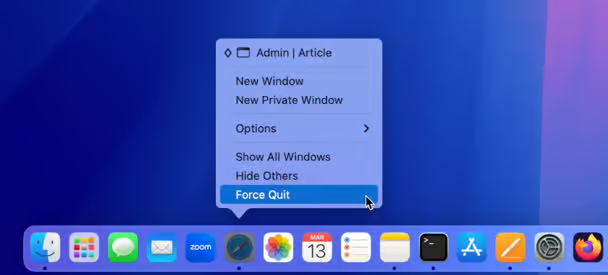
If you wonder how to force quit an app on Mac using the Dock, check out these simple steps:
- To open the dock menu, right-click the application icon you want to shut down or click the item and hold.
- Hold an Option (Alt) button, so the Quit menu changes to Force Quit.
- Click Force Quit.
What to Do If Force Quit Doesn’t Work
In most cases, you’d easily force quit an app with one of the tips we recommend. However, on rare occasions, it won’t work. To solve the problem, you need to shut down your computer and boot it again. All you need to do is go to the Apple menu and select Restart.
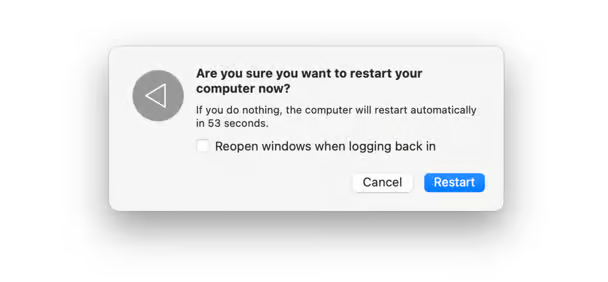
If your Mac has frozen and doesn’t restart, here’s how to force reboot it:
- Hold down the power button until your Mac shuts down completely. This may take about 5 seconds.
- Wait for a few seconds and then hit the Power button again to boot the Mac.
As you may presume, this method is not perfect. Any unsaved information may be lost due to the sudden shutdown. However, sometimes it’s the only way to make your computer run.
If you want to read Apple Official macbook force Quit click on this Document
Is Force Quit Safe on Mac?
Yes, force quit is safe when used correctly.
macOS includes this feature specifically to handle frozen apps without damaging the system. However, force quitting frequently can indicate underlying problems such as:
- Low memory
- Disk space issues
- Incompatible or outdated apps
The real risk is losing unsaved work. That’s why frequent saving and proper app management matter.
MacBook vs iMac: Does Force Quit Work Differently?
Force quitting works the same across all Mac devices:
- MacBook Air
- MacBook Pro
- iMac
- Mac mini
The only minor difference is keyboard layout. On MacBooks with a Touch Bar, the Escape key is located on the left side of the Touch Bar. Functionality remains identical.
macOS versions like Sonoma, Ventura, Monterey, and earlier all support the same force quit methods.
Why Apps Freeze on Mac (Common Causes)
Understanding why apps freeze helps you prevent the problem entirely.
The most common causes include:
- Insufficient RAM
- Running too many apps simultaneously
- Outdated software
- Corrupted app files
- Low disk space
- Incompatible plugins or extensions
Force quitting solves the symptom, but addressing these causes solves the problem.
How to Prevent Apps from Freezing on Mac
Prevention is always better than recovery. To reduce the need for force quit:
- Keep macOS updated
- Close unused apps regularly
- Avoid running heavy apps simultaneously
- Maintain adequate free disk space
- Update third-party apps
- Restart your Mac periodically
These habits improve performance and stability over time.
Final Thoughts: Mastering Force Quit on Mac
Knowing how to force quit on Mac gives you control. It turns a frustrating freeze into a manageable situation and keeps your workflow moving.
Used wisely, force quit is not a problem it’s a solution. Pair it with smart Mac maintenance habits, and you’ll spend less time fixing issues and more time getting things done.
Explore More MacBook Guides: Chips, Models, guide & Prices in 2026
Before buying or upgrading in 2026–2027, explore Mega.pk’s detailed Apple guides:
- Apple M5 vs M4 Chip Comparison
- MacBook Air vs MacBook Pro (Buying Guide)
- MacBook Pro 14-inch vs 16-inch Breakdown
- MacBook Model Identification (Serial Checker Guide)
- Updated MacBook Prices in Pakistan
- Complete MacBook Buying Guide
- What Is a MacBook? (Beginner Overview)
- Apple M3 chip
- Understanding the Apple M5 chip and Apple M4 chip
- How to Reset Macbook (Complete guide)
- How to check Battery Cycle (Guide)
- How to take screenshot on mac(Complete guide)
- How to copy,paste or right click on Macbook
- How to delete apps on macbook
FAQs
How do you force quit a frozen Mac?
You can force quit a frozen app by pressing Option + Command + Escape together. This opens the Force Quit window, where you can select the unresponsive app and close it instantly. It’s the fastest and safest method in most cases.
What should I do if Force Quit is not working on Mac?
If Force Quit doesn’t work, open Activity Monitor and manually force quit the app from there. When that fails, restarting your Mac usually resolves the issue by clearing stuck system processes.
How do I force quit an app on Mac without restarting?
Use the Force Quit Applications window or Activity Monitor to close the frozen app directly. These methods allow you to regain control without restarting your Mac or interrupting other running apps.
How can I unfreeze a Mac without shutting it down?
Start by force quitting the unresponsive app using Option + Command + Escape. If Finder is frozen, relaunch it from the same window. This often restores normal functionality without a shutdown.
How do I force quit an app when my Mac screen is frozen?
If the screen is frozen but the keyboard still works, use Option + Command + Escape. If nothing responds at all, press and hold the power button for about 10 seconds to force a shutdown as a last resort.
How do I force shut down a Mac safely?
When your Mac becomes completely unresponsive, press and hold the power button until it turns off. Wait a few seconds before turning it back on. This method should only be used when other options fail.
Does force quitting an app cause data loss?
Force quitting can result in losing unsaved changes within the app. Saved files remain safe, but any work not saved before the freeze may be lost, which is why frequent saving is important.
What does Command + Q do on a Mac?
Command + Q quits an app normally, allowing it to save data and close properly. If an app is frozen and Command + Q doesn’t work, force quit is the correct alternative.
Why does my Mac freeze and stop responding?
Mac freezes usually happen due to high CPU or memory usage, running too many apps, low disk space, or buggy software. In rare cases, malware or hardware issues can also cause persistent freezing.
How do I force quit Finder on Mac?
Open the Force Quit window, select Finder, and click Relaunch. Finder cannot be fully quit, but relaunching it safely restarts the file system interface without affecting your files.
What is the Terminal command to force quit an app on Mac?
You can use the command killall appname in Terminal to force quit an app. This method is effective for stubborn background processes and is best suited for advanced users.
How often is it safe to force quit apps on Mac?
Occasional force quitting is completely safe and built into macOS. However, needing to force quit frequently may indicate system performance issues that should be addressed to maintain stability.