How to Reset MacBook to Factory Settings (Complete, Safe, and Trusted Guide)
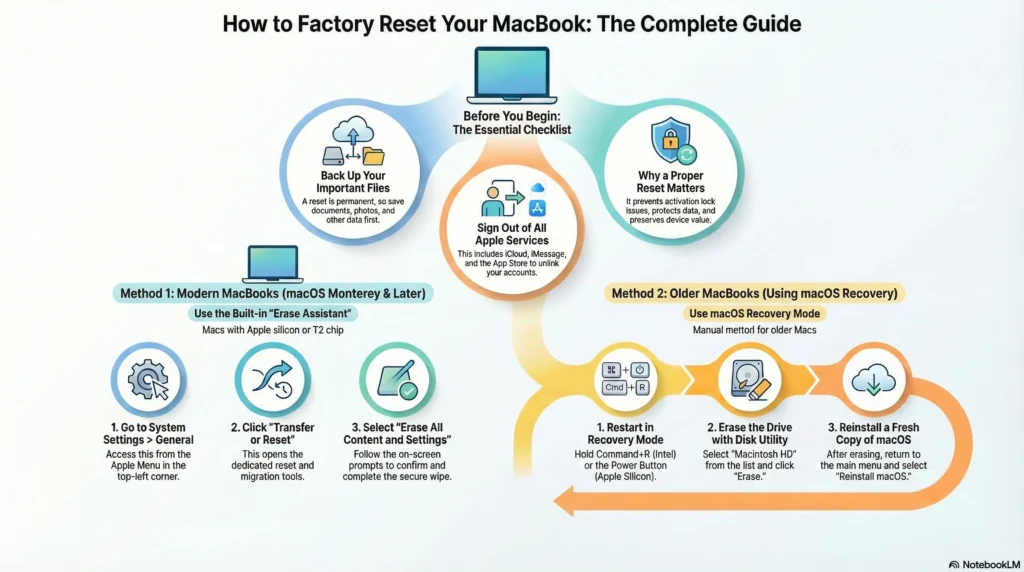
Reset MacBook to factory settings can feel confusing, whether you are troubleshooting performance issues, preparing the device for a new owner, or starting with a clean system. This guide shows the safest and most up-to-date way to reset a MacBook in 2026, without putting your data or system at risk.
Because most users reset MacBook only once or twice in its lifetime, uncertainty and mistakes are common. When done correctly, a proper reset protects personal information, restores system stability, and ensures the MacBook is ready for its next stage of use.
This guide explains how to reset MacBook the right way, covering factory reset methods, system compatibility, and what happens during the process. Each step is explained clearly and simply, so you can reset your MacBook with complete confidence.
What Does “Reset” Really Mean on a MacBook?
Many users search for how to reset a MacBook without realizing that “reset” can mean different things depending on the situation.
A factory reset restores a MacBook to its original state. All personal data, user accounts, installed apps, and customized settings are removed. The operating system remains intact or is reinstalled cleanly, depending on the method used.
A proper reset ensures:
- Your personal data is fully erased
- The MacBook is safe to sell or give away
- Performance issues caused by corrupted files are removed
- The system behaves like new again
Understanding this distinction helps avoid partial resets that leave data behind or cause activation problems later.
When Should You Reset MacBook?
A factory reset is the right decision in several real-world situations:
- You are selling, trading, or gifting your MacBook
- You want a clean system after long-term use
- You are facing persistent system issues that updates did not fix
- You want to remove all personal data securely
If your goal is long-term stability or safe ownership transfer, resetting the MacBook is the most reliable solution.
How to Reset MacBook Using Built-In Factory Reset Options
Modern MacBooks include a built-in reset feature designed to make factory resets faster, safer, and less technical.
System Requirements You Must Meet
Before starting, confirm the following:
- macOS Monterey (12) or later is installed
- Your MacBook uses Apple silicon or includes a T2 Security Chip
- You have administrator access
If these conditions are met, Apple provides a streamlined reset experience that handles data removal and system preparation automatically.
Factory Reset MacBook: Step-by-Step Visual Table
The following MacBook factory restore steps show exactly how to erase all content and reset your device safely using built-in macOS tools.
| Step | Action | What Happens / Why It Matters |
| 1 | Open Apple Menu → System Settings | Access the main controls to start the reset process. |
| 2 | Go to General | This section contains device management and reset tools. |
| 3 | Select Transfer or Reset | Opens the built-in macOS reset options. |
| 4 | Click Erase All Content and Settings | Starts the official factory reset feature (safe and recommended). |
| 5 | Review items that will be erased | Confirms removal of data, settings, Apple ID, apps, and accounts. |
| 6 | Enter your administrator password | macOS verifies identity before wiping your system. |
| 7 | Confirm the erase action | Final confirmation before reset begins (cannot be undone). |
| 8 | Wait for MacBook to erase, restart, and reboot | macOS securely wipes data, signs out of services, and prepares the device like new. |
At this stage, macOS shows a final warning to confirm that all content and settings will be erased. Once you proceed, the factory reset begins and cannot be undone.
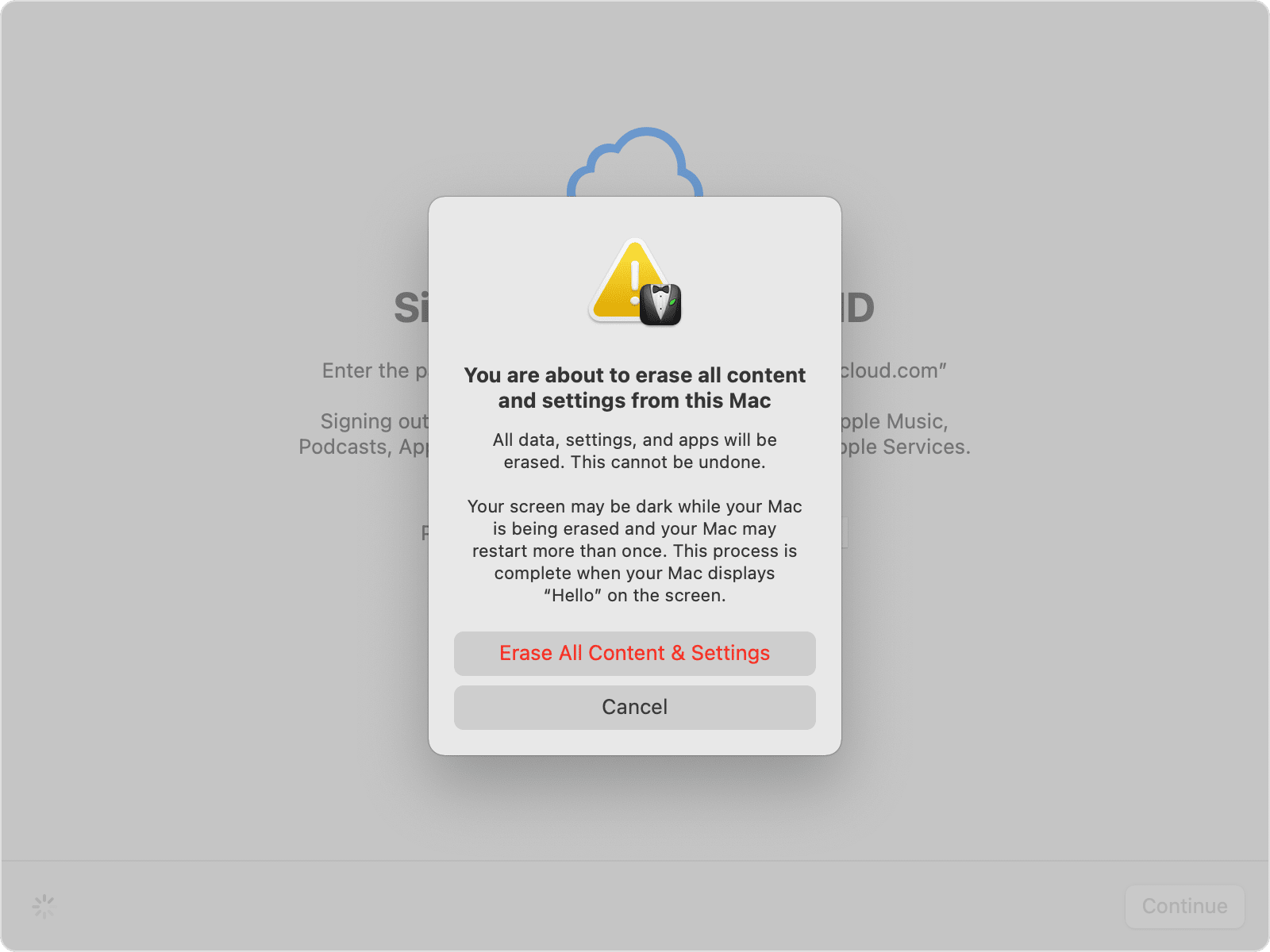
Here’s how the Erase All Content and Settings screen looks on a Mac, guiding you step by step to reset your device safely
For readers who want deeper, model-specific details, Apple official documentation provides a complete breakdown worth reviewing.
Visual Table for Older MacBooks Using macOS Recovery
| Step | Action | Purpose |
| 1 | Restart your MacBook | Needed to access Recovery Mode. |
| 2 (Intel) | Hold Command + R | Opens macOS Recovery on Intel devices. |
| 2 (Apple Silicon) | Hold Power Button | Opens recovery utilities on M-series Macs. |
| 3 | Choose Disk Utility | Allows you to erase internal storage. |
| 4 | Select Macintosh HD → Erase | Removes all data from the drive. |
| 5 | Quit Disk Utility | Return to the main recovery window. |
| 6 | Select Reinstall macOS | Install a clean version of macOS on your MacBook. |
What Happens After Resetting a MacBook?
After a factory reset, the MacBook enters the initial setup stage. This is the same experience a new user would see when powering on a brand-new device.
At this point:
- No personal data remains on the device
- The system is ready for a new owner
- The MacBook can be shut down without setup if selling
If you plan to sell or trade the device, stopping here preserves the out-of-box experience and increases buyer trust.
How to Reset MacBook When the Built-In Option Is Not Available
Some older MacBooks or systems running earlier macOS versions do not support the modern reset feature. In these cases, a factory reset is still possible, but it requires a more manual approach.
This typically applies when:
- macOS is older than Monterey
- The MacBook lacks Apple silicon or a T2 chip
- System settings do not show the erase option
The reset is completed through macOS recovery tools, which allow users to erase storage and reinstall macOS securely.
While this method takes slightly more time, it achieves the same result when done correctly.
Important Things to Do Before Reset MacBook
A successful reset begins with preparation. Skipping these steps can cause data loss or activation problems later.
Before resetting, always:
- Back up important files
- Sign out of Apple services
- Disable device tracking features
- Ensure you know your Apple account credentials
These actions protect your data and ensure the reset completes without interruptions.
How Secure Is a Factory Reset on a MacBook?
A proper factory reset removes personal data in a way that prevents recovery by future users. This is especially important when selling or trading a device.
Apple’s security architecture ensures:
- Encryption keys are destroyed
- User data becomes unreadable
- Apple account links are removed
This level of protection is why a full reset is always recommended over manual deletion.
Why Following the Correct Reset Process Matters
Improper resets often lead to:
- Activation lock issues
- Incomplete data removal
- Buyer complaints after resale
- Reduced device value
Following a structured reset process protects both the device and its owner. This is especially important in professional marketplaces where trust matters.
At mega.pk, users rely on accurate technical guidance to make confident decisions. A properly reset MacBook retains its value and performs exactly as expected for the next user.
Final Thoughts:
Resetting a MacBook should never feel risky or uncertain. When done correctly, it is a controlled, secure process that restores the device to its best possible state.
This guide covers everything needed to understand how to reset a MacBook, including factory reset methods, preparation steps, and post-reset expectations. If you follow these principles, you eliminate confusion and protect your investment.
For users who value reliability, clarity, and long-term performance, a proper reset is not just maintenance, it is smart ownership.
Explore More MacBook Guides: Chips, Models & Prices in 2026
Before buying or upgrading in 2026–2027, explore Mega.pk’s detailed Apple guides:
- Apple M5 vs M4 Chip Comparison
- MacBook Air vs MacBook Pro (Buying Guide)
- MacBook Pro 14-inch vs 16-inch Breakdown
- MacBook Model Identification (Serial Checker Guide)
- Updated MacBook Prices in Pakistan
- Complete MacBook Buying Guide
- What Is a MacBook? (Beginner Overview)
- Apple M3 chip
- Understanding the Apple M5 chip and Apple M4 chip
FAQs About How to Reset MacBook
Does reset MacBook delete everything?
Yes. A factory reset removes all user data, apps, and personal settings from the device. This ensures your MacBook is returned to its original state, which is why creating a backup beforehand is highly recommended.
Can I reset a MacBook without the password?
In most cases, you need administrator access to reset a MacBook. If you’ve forgotten your login credentials, you’ll first need to complete the account recovery process before proceeding with a reset.
How long does a MacBook reset take?
The reset process usually takes between 15 to 45 minutes, depending on your MacBook’s system speed and the amount of storage used. Larger storage or older systems may take slightly longer.
Is factory reset enough before selling a MacBook?
Yes. Performing a factory reset correctly erases all personal data and settings, preparing your MacBook safely for a new owner. It’s a crucial step to protect your privacy and ensure the device is ready for someone else.